
Best Arknights: Endfield PC Settings for Stable FPS
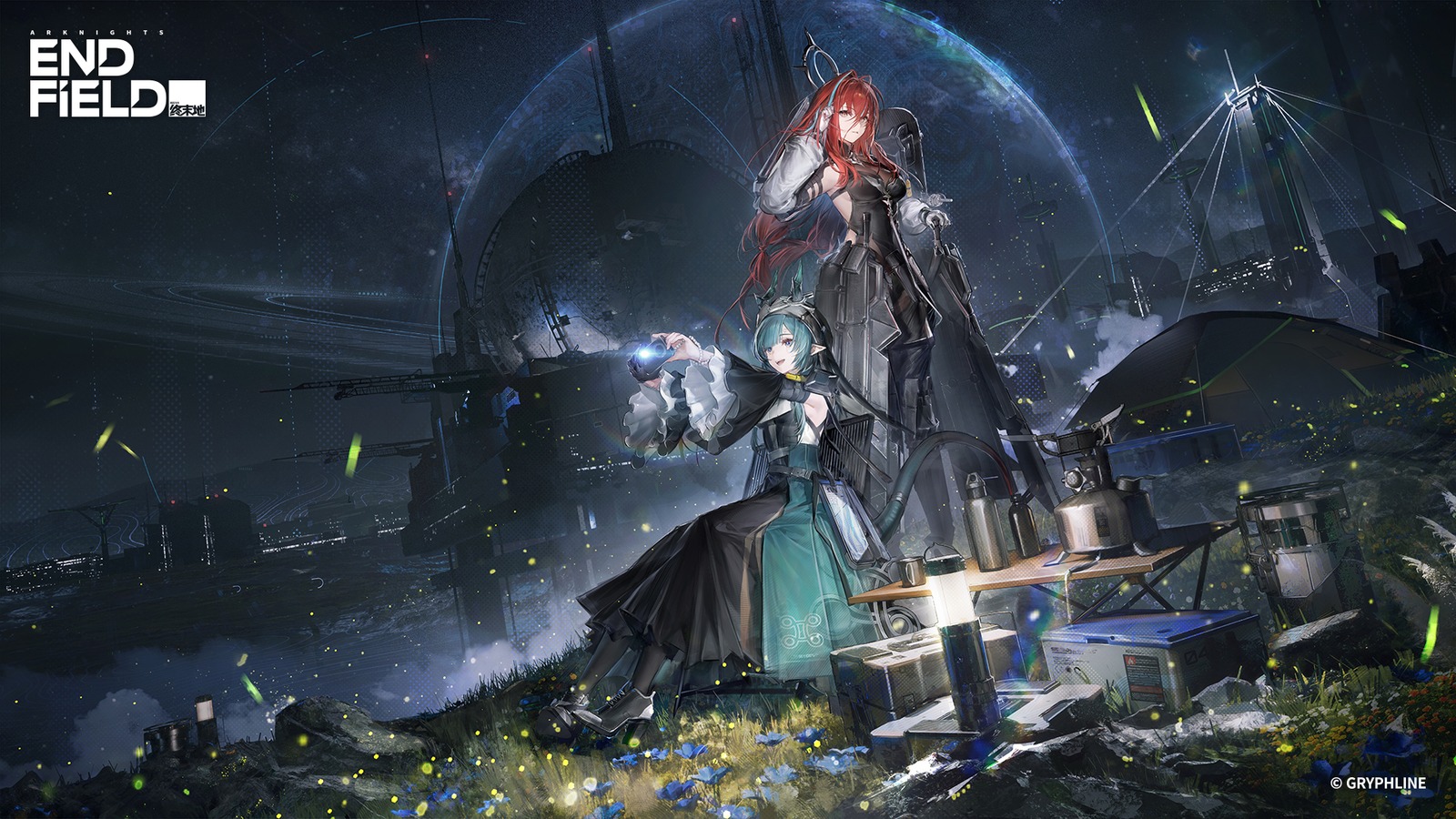
The best Arknights: Endfield PC settings depend on the current game build, your hardware, and the frame-time problem you are trying to solve. There is no responsible universal FPS preset in this draft because RigTactics has not run a controlled benchmark for this article.
The goal here is a repeatable setup workflow: confirm the current requirements, change one graphics variable at a time, and record what improves or worsens your own frame pacing.
Current verification snapshot: August 31, 2026
The official pre-download notice is the authoritative source used for this draft. It lists Windows 10 64-bit or Windows 11 64-bit, DirectX 11.1 or higher, an Intel Core i5-9400F or equivalent minimum CPU, a GTX 1060 or equivalent minimum GPU, and 16 GB RAM for both minimum and recommended tiers. It lists 50 GB of free space plus 40 GB for extraction and recommends an SSD. These are VERIFIED against the official notice, but they remain version-sensitive and must be rechecked before publication.
The notice also says the official PC client is handled through GRYPHLINK and lists PC availability through the official site and Epic Games Store. Storefront availability, client versions, and settings can change independently, so test-build observations must not be merged into this requirements snapshot.
Quick answer: verify the build and hardware first
The official Arknights: Endfield pre-download notice lists Windows 10/11 64-bit, DirectX 11.1 or later, 16 GB RAM, a GTX 1060 minimum GPU, and an i5-9400F minimum CPU. It lists an RTX 2060 and i7-10700K or equivalent for the recommended tier, plus 50 GB free space and an additional 40 GB for extraction. The official notice also recommends installing on an SSD. See the official PC requirements notice.
The Steam listing currently presents a different storage figure and labels the game as coming soon, so distribution-specific requirements can change. Treat the official launcher or current storefront as the final check before installation, especially after a major update. Do not treat either page as a promise of a particular FPS result.
Start with a clean settings baseline
Record your current resolution, display mode, frame-rate option, graphics preset, upscaling or resolution-scaling option if present, and any effects you change. Save a short repeatable route in the game so comparisons use the same camera movement and scene.
Change one control at a time. Begin with the settings that most obviously affect GPU workload, then check whether the result is visually acceptable. If the problem is hitching rather than a consistently low frame rate, lowering every setting at once can hide the cause instead of identifying it.
Keep the display target realistic for the hardware. A high-refresh monitor does not require the game to sustain that refresh rate, and a frame cap should be evaluated against the stability you can actually maintain. RigTactics does not publish a numeric cap or FPS result here without testing evidence.
Troubleshoot stutter without guessing
Use this order when the game feels unstable:
- Confirm the game and launcher are fully updated.
- Check free storage and the installation drive.
- Confirm Windows and GPU driver state, recording what changed.
- Close background overlays one at a time rather than disabling everything blindly.
- Recheck resolution, display mode, graphics preset, and frame-rate controls.
- Repeat the same in-game route and note whether the behavior is repeatable.
If an update changes the behavior, record the version and date in the article’s editorial notes. Test access, preview builds, and live releases may behave differently; do not turn test observations into permanent recommendations.
What to test on your PC
For a useful personal result, log hardware, driver version, game version, resolution, graphics settings, and whether the issue is a low average frame rate, a short hitch, input delay, or a crash. Use the same scene and avoid comparing a busy combat section with an empty menu.
The final RigTactics version should add measured results only after repeatable testing. Until then, the verified information is the published requirements and the workflow above; the recommended settings remain an editorial testing plan, not a benchmark claim.
There is no CPA/CPI offer in this article. A game acquisition placement remains pending until its USA eligibility, payout, cap, attribution, approval, landing page, and user experience are independently validated. Relevant internal routes are the Setup Guides category, Game Guides, and the existing-PC setup guide.
Conclusion
Stable Arknights: Endfield performance starts with a current requirements check and a controlled settings process. Use the official requirements as the compatibility baseline, change one variable at a time, and wait for repeatable evidence before publishing exact FPS targets or a universal preset.