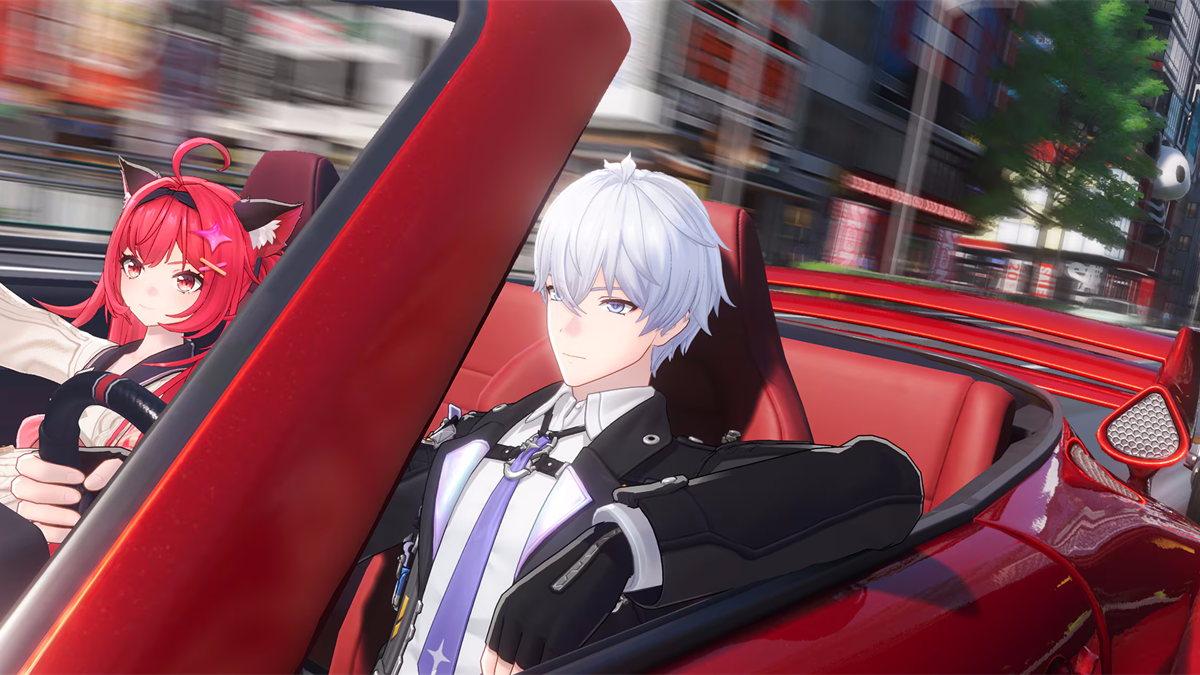




NTE is short for Neverness to Everness. It is available on Windows PC. Input behavior can change with client updates and the device you use. Verify the live control menu. Do not assume that a controller feature from another game exists here.
Start by confirming the Windows device
Connect the keyboard mouse or controller before launching NTE. Confirm that Windows detects it. Note whether the device is wired or wireless. If Windows does not see the device an in game setting will not solve the connection problem.
Use USB before Bluetooth when testing a controller. For a wireless mouse or keyboard check pairing. Check the battery. Confirm that any required receiver is connected before opening the launcher.
Check the live NTE control menu
Open the current control settings. Record the options that the client exposes. Look for key binding mouse sensitivity camera behavior controller detection button prompts vibration and input switching. Record only options that appear in your build.
This guide does not claim a universal controller support matrix. The official launch FAQ confirms the PC platform. It does not publish a complete controller compatibility list. Treat the game’s current menu and official support response as the authority for a specific device.
Keep keyboard and mouse as a fallback
A keyboard and mouse layout is useful even when a controller works for movement. The launcher login fields troubleshooting steps and text entry may still be easier with a keyboard. Keep the fallback connected while testing. Remove one input method only after the other is confirmed.
If button prompts switch unexpectedly close remapping software and reconnect one device at a time. Record which device is active when the prompt changes.
A one change input checklist
- Close NTE and the launcher.
- Connect only the input device you want to test.
- Confirm Windows detection.
- Start the official current client.
- Check the control menu and test a short repeatable action.
- Add a second device only after the first behaves correctly.
This separates a device problem from a game configuration problem. It also prevents you from blaming the game when a receiver Bluetooth pairing or remapper is responsible.
When input does not work in gameplay
Check whether the device still works in Windows. Check whether another application has captured it. Check whether a remapping layer is active. Restart NTE after changing the connection method. If the game shows controller prompts but gameplay input fails record the device model connection type Windows version client version and exact screen where the failure occurs.
Do not promise that a third party controller will work without testing or official confirmation. The same model can behave differently through USB Bluetooth or an external remapping layer.
Connect input questions to PC setup
NTE’s official FAQ lists Windows PC availability and account progression across supported platforms. It does not replace the current client’s own control menu. For installation and storage use the NTE PC requirements checklist. For stutter or crashes use the NTE PC settings checklist.
Conclusion
For the complete NTE setup route, return to the NTE PC guide.
Set up NTE input from the outside in. Confirm Windows detection. Inspect the live game menu. Test one device at a time. Keep keyboard and mouse as a fallback. The process keeps the guide accurate without turning an unverified controller assumption into a promise.
Source